



Accesible Library
Our library strives to enable equal access to information for all individuals. This page is designed to provide quick access to digital resources, audio libraries, and technological tools you may need for your academic studies.
Digital Material Requests
Our visiually impaired students can submit their resource digitalization requests to the Department of Library and Documentation via the email address eakyol@aybu.edu.tr or through the form provided below.
Form Information: Book Request Form Link
CLICK HERE to see the list of ready-to-use books scanned in our library for our visually impaired users.
Useful Links:
- *GETEM (Boğaziçi University Assistive Technology and Education Center for the Visually Impaired): Turkey's largest digital audio library.
- * Milli Kütüphane - Konuşan Kitaplık: An extensive audio book archive provided by the Ministry of Culture and Tourism.
- * TÜRGÖK (Library for the Visually Impaired of Turkey): An important Izmir-based organization providing Braille-printed and audio book services.
There are two "Barrier-Free Unit" rooms for visually impaired students within our Department: one in the Esenboğa Campus Block A Library and another in the Etlik 15 Temmuz Şehitleri Yerleşkesi Library. The equipment available in these rooms is as follows;
- 2 Computers per room equipped with Jaws For Windows (PRO ML 2019 version screen reader with Aylin/Cem/Yelda Turkish voice synthesizers and other languages)
- 2 desks and office chairs per room
- 1 Pearl document reader per room for instant image capture
- 1 5th Gen. Blue Focus 40 Braille display keyboard
- A scanning device is avaliable for scanning requested books, along with OCR Software for editing.
Our barrier-free unit responsible personnel affiliated with our Department meet book requests from visually impaired users, scan and organize them, and offer them to the service of users.
Visually Impaired Users' Access to the Ebook Central Platform
The Ebook Central platform supports access and use of content for users with both visual impairments and Dyslexia. Accordingly, access to 329,000 electronic books is provided for our visually impaired.
Access Details:
Ebook Central is constantly designed and developed in accordance with the W3C Web Content Accesibilty Guidelines (WCAG 2.2) Level AA requirements.
Ebook Central Users can:
- Navigate the Website using only a keyboard or voice recognition software.
- Use skip links to jump directly to main content areas on the page (This expression is generally used on websites for accessibility purposes; people using screen readers or keyboards can access content directly by bypassing navigation menus.)
- Listen to the website using a screen reader.
- Navigate through page content with the help of headings.
- Listen to an e-book with a screen reader by activating the "Text Only" mode.
- Zoom up to 200% using browser tools without text overflowing the screen.
If you have a disability and need to make it easier to use your computer, tablet, or another device, the resource named AbiltyNet is recommended. Additionally, it is advised to browse free add-ons offered for Google Chrome and Mozilla Firefox.
Text Only Mode is an option that can be activated within Ebook Central when a screen reader such as JAWS or VoiceOver is used. When you access Ebook Central through a screen reader, your screen reader will read aloud instructions on how to activate Text Only Mode. When this mode is activated Ebook Central's online PDF reading interface switches to a text-based view, and you can read the text on the screen and control navigation with your screen reader.
*Text Only Mode is linked to a specific Ebook Central user account; therefore, you must be logged into an account to enable this mode and access books in text-only mode. For individuals who want to test on behalf of a user but do not have access to a screen reader, you can watch the introductory Video showing how this mode works.
When Text Only Mode is activated, your screen reader will also vocally present instructions on how to turn this mode off.
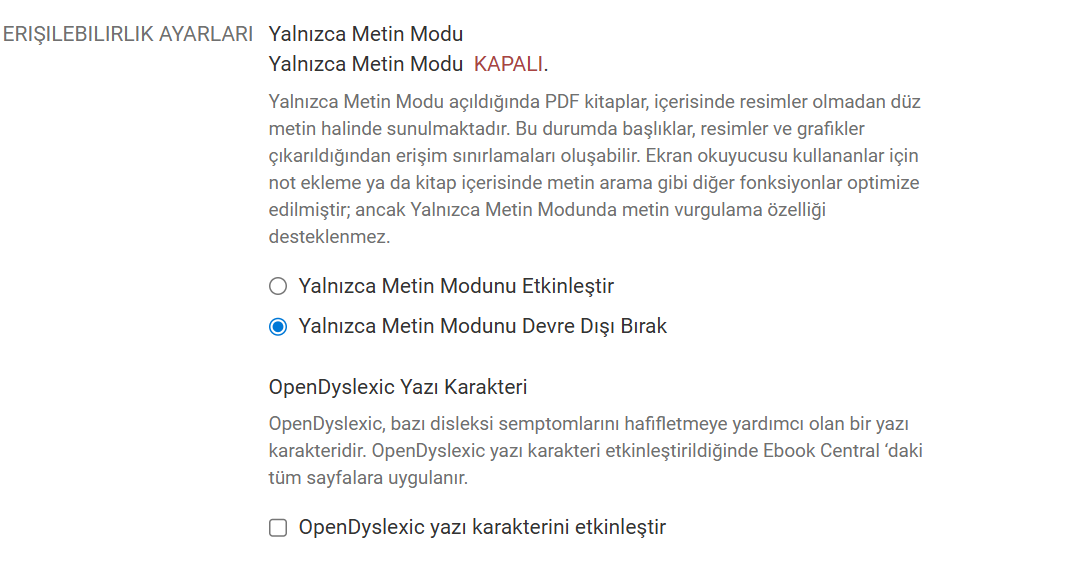
After users log into their Ebook Central accounts, they can complete their settings by clicking the “Profil” (Profile) tab in the upper right corner of the screen, selecting the “Yalnızca Metin Modunu Etkinleştir” (Enable Text Only Mode) option at the bottom of the page, selecting the “Kullanım Koşulları” (Terms of Use) box, and clicking the “Değişiklikleri Kaydet” (Save Changes) button.
Ebook Central also supports the OpenDyslexic typeface, which helğs alleviate dyslecia symptoms for users with dyslexia. For this feature to be active, after the user logs into their Ebook Central account, they need to click on the “Profil” (Profile) tab in the upper right, select the “OpenDyslexic yazı karakterini etkinleştir” (Enable OpenDyslexic typeface) option at the bottom of the page, select the “Kullanım Koşulları” (Terms of Use) box, and click the “Değişiklikleri Kaydet” (Save Changes) button.
Responsible personnel
Emin AKYOL